

.png?width=1448&height=1086&name=Feedlot%20Solutions%20(21).png)
8 min read
Every office has had this month-end. The invoices are finished in FLS — feed, yardage, processing, the lot. Then somebody opens QuickBooks and types them all in again, customer by customer, line by line, chasing a total that has to match. A week later a cheque arrives, gets recorded in QuickBooks, and the customer's balance in FLS quietly starts drifting.
Nothing was wrong with either set of numbers. They just lived in two places, and keeping them in step was somebody's afternoon, every month.
QuickBooks Sync closes that gap. FLS sends the invoice across. QuickBooks sends the payment back. Neither system has to be told twice.
Where to find it
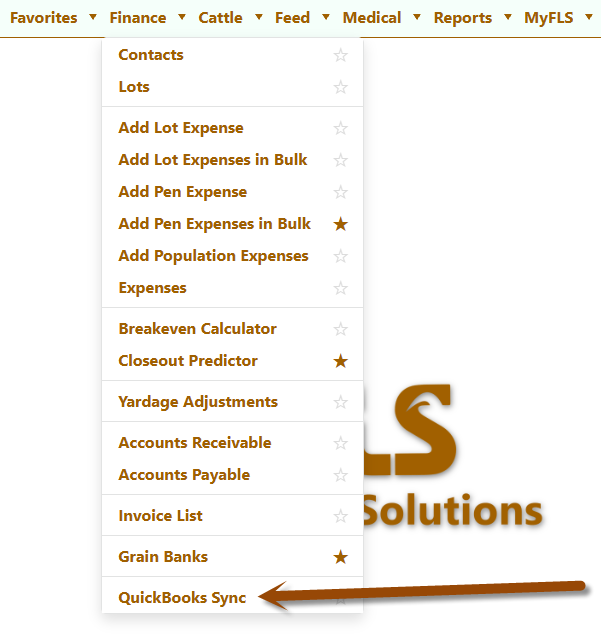
Open the Finance menu and choose QuickBooks Sync. It's an administrator screen — connecting a company file and posting into your books is the same level of trust, so it sits with your Admin and Company Admin users rather than being half-open to everyone.
Five tabs across the top: Invoices, Component Purchases, Item Purchases, History and Settings. The first three are the records waiting to go. History is every attempt ever made. Settings is the 5 minutes you spend once.
Set it up once
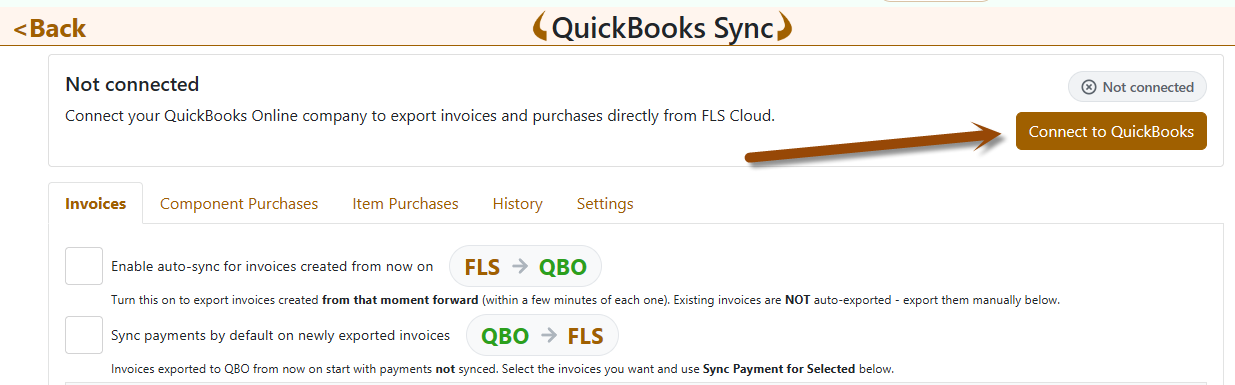
- Press Connect to QuickBooks. You'll sign in at Intuit and pick the company file. Come back and the card at the top reads Connected with the company name, who connected it, and when.
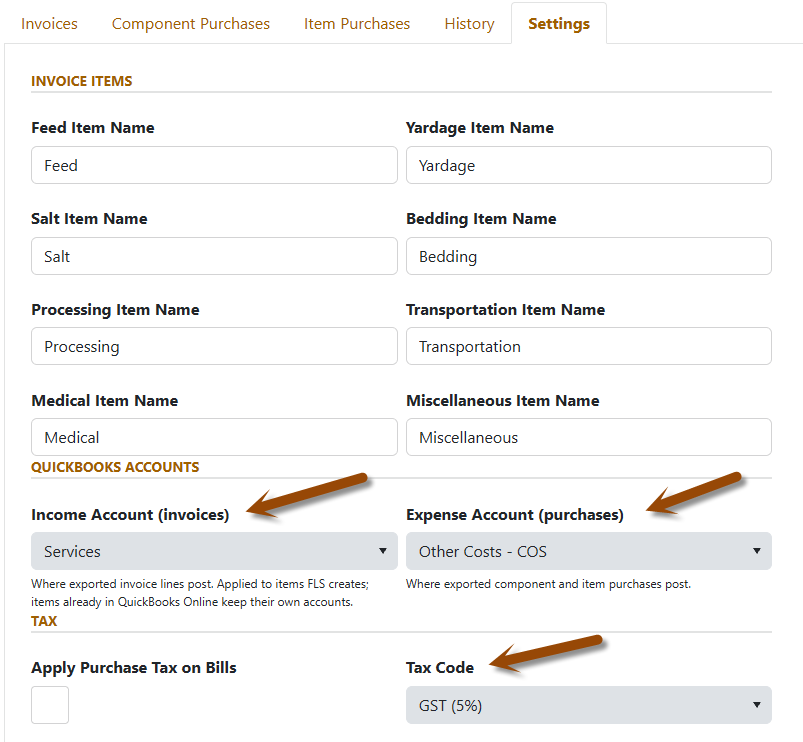
- Choose two accounts on the Settings tab. An Income Account for invoices and an Expense Account for purchases, both picked from your own chart of accounts. They're chosen from a list rather than typed, so a slip of the keyboard can't invent a new account in your books.
- Check the item names. Feed, Yardage, Salt, Bedding, Processing, Transportation, Medical and Miscellaneous. These are what your invoice lines will be called in QuickBooks — rename them to match what your accountant already uses. If an item doesn't exist over there yet, FLS creates it.
- Canadian feedlots: set the tax code. Pick the QuickBooks code that matches the GST rate you charge in FLS. If the two rates disagree, the export stops and tells you — better than discovering it on a return.
Where the money lands
An exported invoice line doesn't name an account. It names an item — Feed, Yardage, Salt — and QuickBooks posts it to whatever income account that item carries. That small indirection is worth knowing, because it's what lets your accountant change their mind later without anyone reconfiguring FLS.
The first time FLS meets an item name that isn't in QuickBooks yet, it creates the item and gives it the income account from Settings. After that the item is yours. If your accountant later wants feed revenue reported apart from yardage revenue, they add the account in QuickBooks, point the Feed item at it, and every invoice exported from then on follows — nothing to change in FLS. Invoices already in QuickBooks stay posted where they were; moving those is a QuickBooks question, and it will ask.
One rule keeps this working: the names have to match. FLS finds items by exact name, so rename one on a single side and FLS quietly creates a second item under the old name.
Sending invoices and purchases across
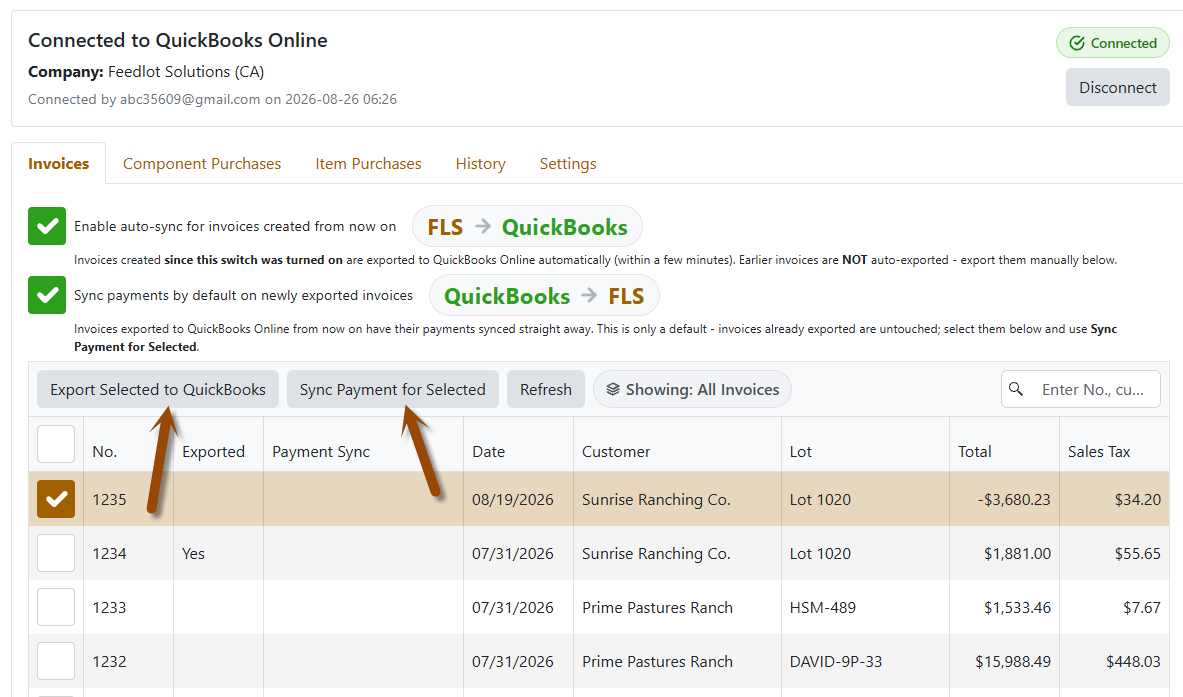
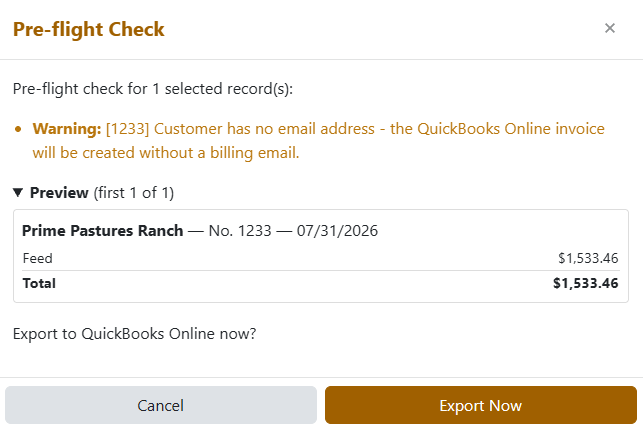
Tick the rows you want and press Export Selected to QuickBooks. Before anything leaves, a Pre-flight Check opens and tells you what it found:
- Errors block the export — a zero total, a missing account, a tax rate that doesn't line up. Those records can't go until you fix them.
- Warnings and notes don't block anything. They just say what will happen, like a customer with no email address, so nothing surprises you afterwards.
- A preview of the first record shows the exact lines and total that are about to land in QuickBooks.
Press Export Now and the Exported column turns to Yes. That flag is what stops the same invoice going twice, however many times somebody presses the button.
Once you trust it, tick Enable auto-sync on any of the three tabs and new records go on their own, within a few minutes of being created. Read that switch carefully: it covers records created from that moment forward. Anything already sitting in the list stays where it is until you export it by hand — which is deliberate, so switching it on can never dump a year of history into your books.
Payments come back the other way
Record every customer payment in QuickBooks, the way you already do. FLS never creates, edits or deletes payment data over there — it only reads.
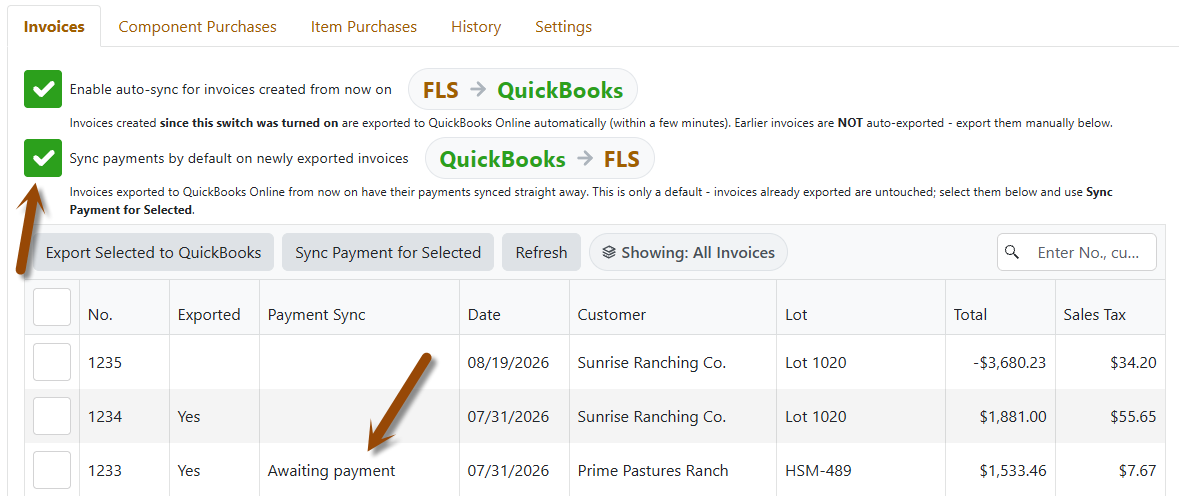
Payments are turned on one invoice at a time: select exported invoices and press Sync Payment for Selected. The Payment Sync column then reads Awaiting payment — the invoice is being watched, the customer simply hasn't paid yet — and flips to Synced the moment money reaches the FLS ledger. An invoice can sit on Awaiting payment for months. Nothing is stuck.
Each payment arrives as a receipt on that customer's AR Transactions screen. Part payments post what was actually paid. If you later change the amount in QuickBooks, FLS posts only the difference; if you void or delete it, FLS posts an offsetting entry that cancels the receipt. The original entry is never rewritten, so the trail stays readable.
Turning payment sync on for an invoice imports everything QuickBooks has already applied to it, however long ago — then keeps up with new ones on its own.
The details it handles for you
- Grain bank credits ride across as their own line, so the QuickBooks total is what the customer actually owes, not the pre-credit figure.
- GST that only applies to part of a charge is split into a taxed and a zero-rated line, so QuickBooks arrives at the same tax you billed.
- A customer who is also a supplier keeps working. QuickBooks won't allow the same display name twice, so FLS adds a quiet suffix behind the scenes — the invoice itself still shows the real name.
- Deleting an invoice in FLS removes its QuickBooks copy too, so the two never drift apart.
- Every attempt is logged in the History tab: what went, when, by whom, and the reason if it didn't.
What to watch for
- Auto-sync starts from when you switch it on. Existing records are yours to export manually. Do the backlog first, then flip the switch.
- Payment sync is one-way and permanent. Once an invoice is being watched it can't be switched back off, so turn it on deliberately rather than by selecting the whole grid.
- Don't delete an FLS invoice while QuickBooks still has a payment on it. FLS will refuse, on purpose — a deleted invoice under a live payment is how ledgers stop balancing. Unapply or void the payment in QuickBooks first; the reversal syncs back within a few minutes, and then the invoice will delete.
- Duplicate invoice numbers are rejected. If that number already exists in QuickBooks, the export fails and nothing lands. Renumber one side and send it again.
- Refunds aren't imported. A refund in QuickBooks either unapplies or voids the payment — and that part does sync — or it returns money that never belonged to an FLS invoice.
- An outage only pauses things. If QuickBooks is unreachable the sync waits and catches up. Nothing is skipped, and re-running is always safe — it can't create a duplicate receipt.
QuickBooks Sync is live in FLS Cloud.
If you'd like a hand pointing it at the right accounts, talk to us about setup →
Questions about your own chart of accounts or tax codes? Email support@feedlotsolutions.com.
Not on FLS Cloud yet? Book a demo and we'll show you the whole loop, invoice to payment.
.
Not using FLS Cloud yet? Feedlot Solutions provides the most comprehensive, cloud-based management software for the modern beef producer. From inventory and health records to precise feed billing and custom reporting, we help you measure it so you can manage it.
Click here to schedule a demo.
Keywords: Feedlot management software, feedlot record keeping, custom feedlot billing, cattle closeout reports, feedlot closeout, cattle performance analysis, ration tracking, feed inventory, yardage billing, cattle health records, feedlot accounting, custom feeding software, grain bank, cattle medical, cattle inventory, cattle movements, cattle tag management, average daily gain, ADG, dry matter intake, DMI, feed conversion ratio, FCR, feed efficiency, gain efficiency, cost of gain, COG, break even analysis, cattle closeout report, pen closeout, lot closeout, group closeout, feedlot closeout report, cattle profit loss, cattle margin analysis, cattle weight gain tracking, cattle average weight, cattle shrink, cattle days on feed, DOF, cattle projected finish date, feed management software, feed inventory software, feed tracking software, feed delivery records, feed consumption tracking, feed cost tracking, feed ingredient inventory, ration management, ration tracking, ration formulation, ration cost, ration changes, ration history, daily feed records, feed bunk management, bunk reading, feed call, feed sheets, feed tickets, feed usage reports, ingredient usage, feed mixing records, TMR records, total mixed ration, feed truck records, feed scale integration, scale head data import, Cattle accounting software, feedlot accounting software, cattle billing software, cattle invoice software, feedlot invoice, feedlot customer billing, owner billing, cattle owner statements, yardage billing, feed billing, medicine billing, processing charges, transportation charges, trucking charges, cattle purchase expense, cattle sale settlement, feedlot receivables, feedlot payables, feedlot financial reports, cattle cost reports, cattle expense reports, feedlot profitability
Comments